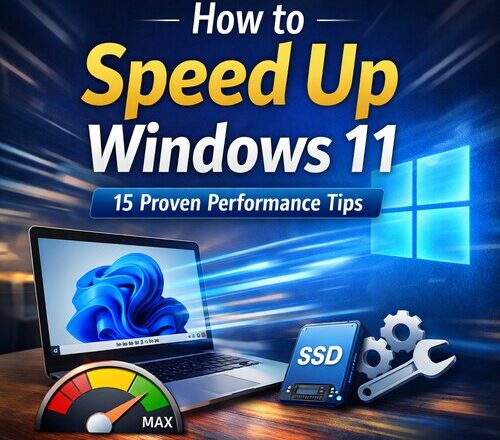
If you are searching for how to speed up Windows 11, you are not alone. Many users experience issues like slow startup, lag while multitasking, delayed app launches, or overall sluggish behavior after some months of usage. Even on decent hardware, Windows 11 running slow is a common complaint.
The good news is that you do not need to reinstall Windows or buy a new laptop immediately. With the right settings and optimizations, you can make Windows 11 faster, improve responsiveness, and enjoy a smooth experience again.
I was personally facing slow startup and lagging issues on my Windows 11 Acer laptop. Over time, the system became less responsive, apps took longer to open, and boot time increased. I started researching different ways to fix these problems and tested multiple solutions to see what actually worked.
In this article, I am clubbing all the proven and effective tips in one place so you do not have to search across multiple websites. All the steps shared here are beginner-friendly, safe to apply, and tested in real-world usage, making them suitable even if you are not very technical.
1. Disable Startup Programs to Fix Windows 11 Slow Startup
One of the biggest reasons for Windows 11 slow startup is too many apps launching at boot.
Why it matters
Every startup app consumes memory and CPU in the background. Over time, this significantly increases boot time and slows down your system.
How to do it
- Press Ctrl + Shift + Esc to open Task Manager
- Go to the Startup apps tab
- Disable apps that are not essential, such as launchers, updaters, or chat tools
Keep antivirus and system-related apps enabled.
This single step can dramatically speed up Windows 11 laptop boot time.
2. Turn Off Visual Effects for Better Performance: How to Speed up Windows 11
Windows 11 comes with animations, shadows, and transparency effects that look great but consume system resources.
Why it helps
Disabling unnecessary visuals reduces GPU and RAM usage, leading to smoother performance, especially on mid-range or older systems.
Steps
- Press Windows + R, type
sysdm.cpl, press Enter - Open the Advanced tab
- Under Performance, click Settings
- Select Adjust for best performance or customize manually
This is one of the easiest ways to improve Windows 11 performance instantly.
3. Uninstall Unused Programs and Bloatware
Preinstalled apps and unused software slow down Windows over time.
What to remove
- Trial software
- Manufacturer utilities you never use
- Old games and tools
- Duplicate apps
How
Go to Settings > Apps > Installed apps and uninstall unnecessary programs.
Cleaning bloatware improves storage, reduces background services, and helps with Windows 11 lag fix.
Using too many heavy or unnecessary applications can slow down your system. If you are looking for lightweight alternatives, check out my guide on Best Free Windows Software for Productivity.
4. Keep Your Windows 11 Updated
Running an outdated version of Windows can cause bugs, performance issues, and security problems.
Why updates matter
Microsoft frequently releases performance improvements, bug fixes, and driver optimizations.
How to check
Go to Settings > Windows Update and install all pending updates.
According to Microsoft’s official Windows 11 performance guidelines, keeping your system updated helps improve stability and speed.
5. Update Graphics and System Drivers
Outdated drivers are a hidden cause of Windows 11 running slow, especially for gaming and heavy applications.
Focus on these drivers
- Graphics card
- Chipset
- Network adapter
- Storage controller
Best practice
Download drivers directly from your laptop or hardware manufacturer website rather than third-party tools.
Updated drivers can significantly make Windows 11 faster and more stable.
6. Free Up Disk Space on System Drive
Low disk space affects Windows performance more than most people realize.
Why
Windows needs free space for virtual memory, caching, and updates.
How to clean storage
- Go to Settings > System > Storage
- Enable Storage Sense
- Delete temporary files, recycle bin data, and old update files
Aim to keep at least 20 to 25 percent free space on your C drive to speed up Windows 11 laptop performance.
7. Disable Background Apps Running Unnecessarily
Many apps continue running in the background even when you are not using them.
Impact
They consume RAM, CPU, and network resources, leading to lag and reduced battery life.
How to stop them
- Open Settings > Apps > Installed apps
- Select an app
- Go to Advanced options
- Set Background app permissions to Never
This step is very effective for Windows 11 performance optimization.
8. Check for Malware and Unwanted Software
Malware and adware can severely slow down your system.
What to do
Use Windows Security or a trusted antivirus to run a full system scan.
Why it matters
Hidden threats often cause high CPU usage, disk activity, and network consumption, making Windows 11 running slow even on powerful systems.
Users who often connect to public networks should be extra careful, as unsafe Wi-Fi can expose the system to threats that impact performance. I’ve explained this in detail in my article on is public Wi-Fi safe on Windows 11.
9. Adjust Power Mode for Performance
By default, many laptops are set to balanced or power-saving mode.
Solution
Switch to a higher performance mode.
Steps
- Go to Settings > System > Power & battery
- Under Power mode, select Best performance
This is especially useful if you want to speed up Windows 11 laptop during work or gaming sessions.
10. Reduce Browser Load and Extensions
Web browsers are one of the biggest resource consumers.
Tips
- Remove unused browser extensions
- Limit open tabs
- Enable sleeping tabs in Edge or Chrome
A heavy browser setup can make Windows 11 lag fix harder than expected.
11. Disable Widgets and Background Services
Windows 11 widgets and services continuously fetch data in the background.
How to disable widgets
- Right-click the taskbar
- Go to Taskbar settings
- Turn off Widgets
This helps reduce unnecessary CPU and RAM usage.
12. Optimize Virtual Memory Settings: How to Speed Up Windows 11
Virtual memory helps when RAM is limited, but wrong settings can hurt performance.
Recommended setting
Allow Windows to manage virtual memory automatically.
How
- Press Windows + R, type
sysdm.cpl - Go to Advanced > Performance > Settings
- Open Advanced tab
- Click Change under Virtual Memory
- Enable Automatically manage paging file size
This ensures smoother multitasking and helps improve Windows 11 performance.
13. Use SSD Instead of HDD (If Possible)
If your system still uses a traditional hard drive, upgrading to an SSD is the biggest performance boost you can get.
Benefits
- Faster boot times
- Faster app launches
- Smoother multitasking
An SSD upgrade alone can completely change how fast Windows feels and is the ultimate solution for Windows 11 slow startup.
14. Clean Boot to Identify Performance Issues
Some third-party services cause conflicts and slowdowns.
Clean boot helps you
- Identify problematic software
- Improve system stability
- Fix unexplained lag
How
Use System Configuration to disable non-Microsoft services temporarily and test performance.
This method is powerful for advanced Windows 11 lag fix troubleshooting.
15. Restart Your PC Regularly
Many users put laptops to sleep for weeks without restarting.
Why restarting helps
- Clears RAM
- Stops stuck background processes
- Applies updates properly
A simple restart can instantly make Windows 11 faster if your system has been running for long periods.
Bonus Tips to Keep Windows 11 Fast Long-Term
- Avoid registry cleaners and fake optimizer tools
- Do not install unnecessary third-party antivirus software
- Keep at least 8GB RAM for smooth multitasking
- Use lightweight apps where possible
Final Thoughts on How to Speed Up Windows 11
If you were wondering how to speed up Windows 11, these 15 proven tips cover everything from startup optimization to system settings and hardware improvements. You do not need to apply all changes at once. Even implementing 4 or 5 of these can noticeably improve Windows 11 performance.
Whether you are facing Windows 11 slow startup, random lag, or overall sluggish behavior, consistent optimization and smart usage habits can keep your system running fast for years.
If you found this guide helpful, consider bookmarking it or sharing it with someone dealing with Windows 11 running slow issues.
FAQs
1. Does Windows 11 get slower over time on laptops used for work and remote jobs?
Yes, Windows 11 can feel slower over time, especially on laptops used daily for work, remote jobs, or online meetings. Continuous software installations, frequent updates, browser cache buildup, and long uptime without restarts gradually affect system responsiveness. Even if the hardware is capable, regular usage patterns can lead to noticeable lag unless basic maintenance is done periodically.
2. Is Windows 11 slower than Windows 10 on older laptops?
On older laptops, Windows 11 may feel slower than Windows 10 if the system barely meets the minimum hardware requirements. Windows 11 relies more on modern CPUs, SSD storage, and additional background services. On systems with limited RAM or older hard drives, performance issues such as delayed boot, stuttering, or UI lag are more noticeable unless proper optimization is applied.
3. When should I consider upgrading hardware instead of optimizing Windows 11?
You should consider a hardware upgrade if your laptop still struggles after applying all basic optimizations. If your system uses a traditional hard drive, upgrading to an SSD provides a major performance boost. Similarly, laptops with 4GB RAM often struggle with modern browsers and productivity tools commonly used. In such cases, hardware upgrades deliver more reliable long-term Windows 11 performance improvement than software tweaks alone.

Ankit is the tech blogger behind MyTechMarvel.com, sharing practical guides and honest software reviews since 2014. He focuses on Windows and PC tools, mobile apps, account security, and everyday tech solutions to help readers make informed decisions.